

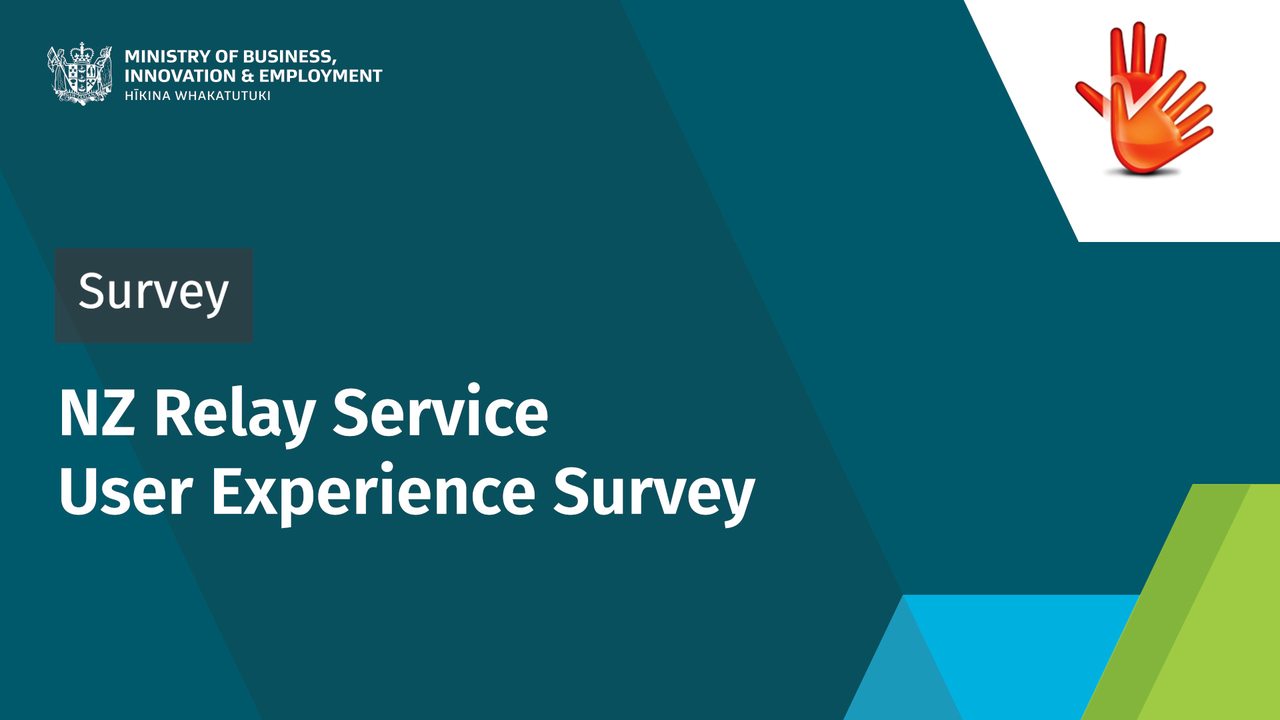
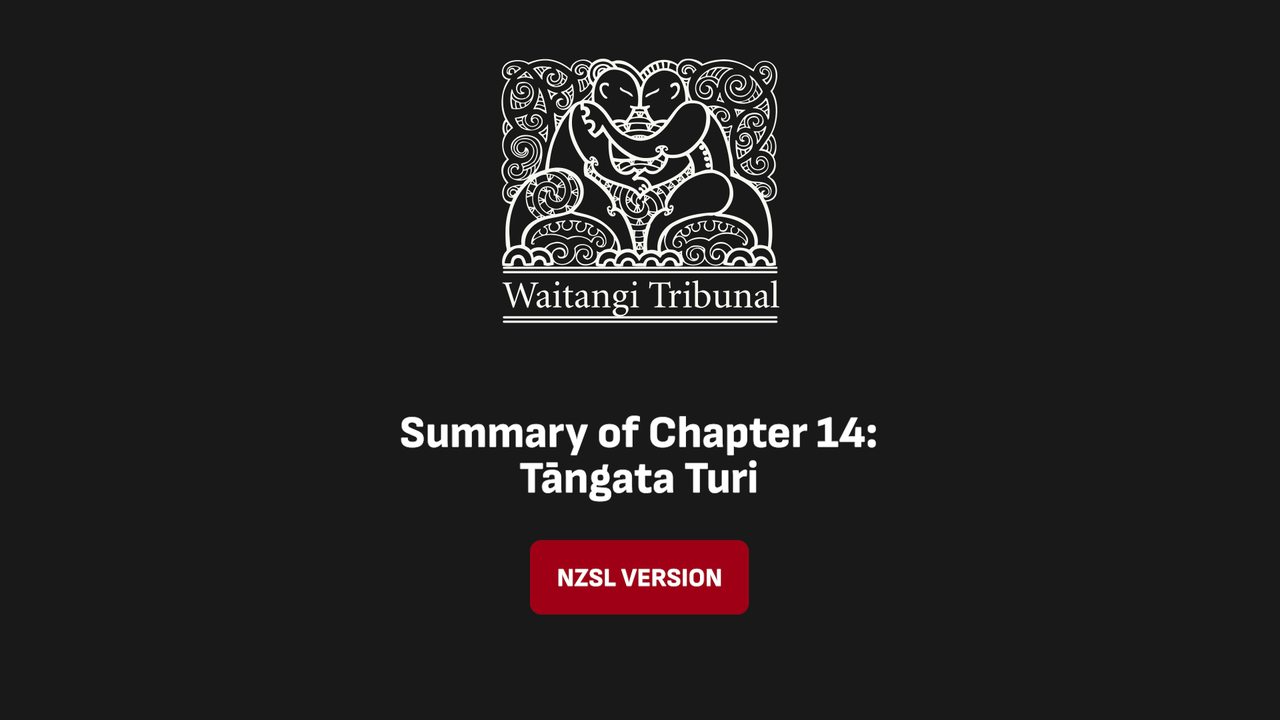
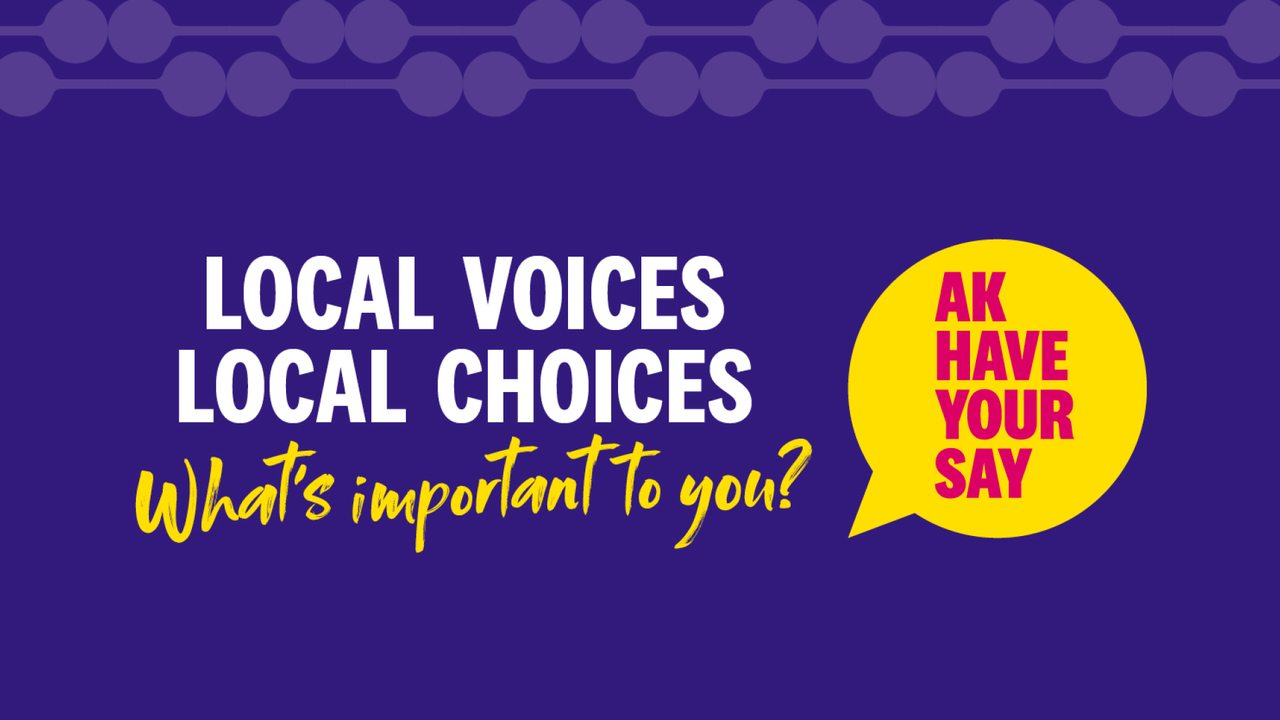
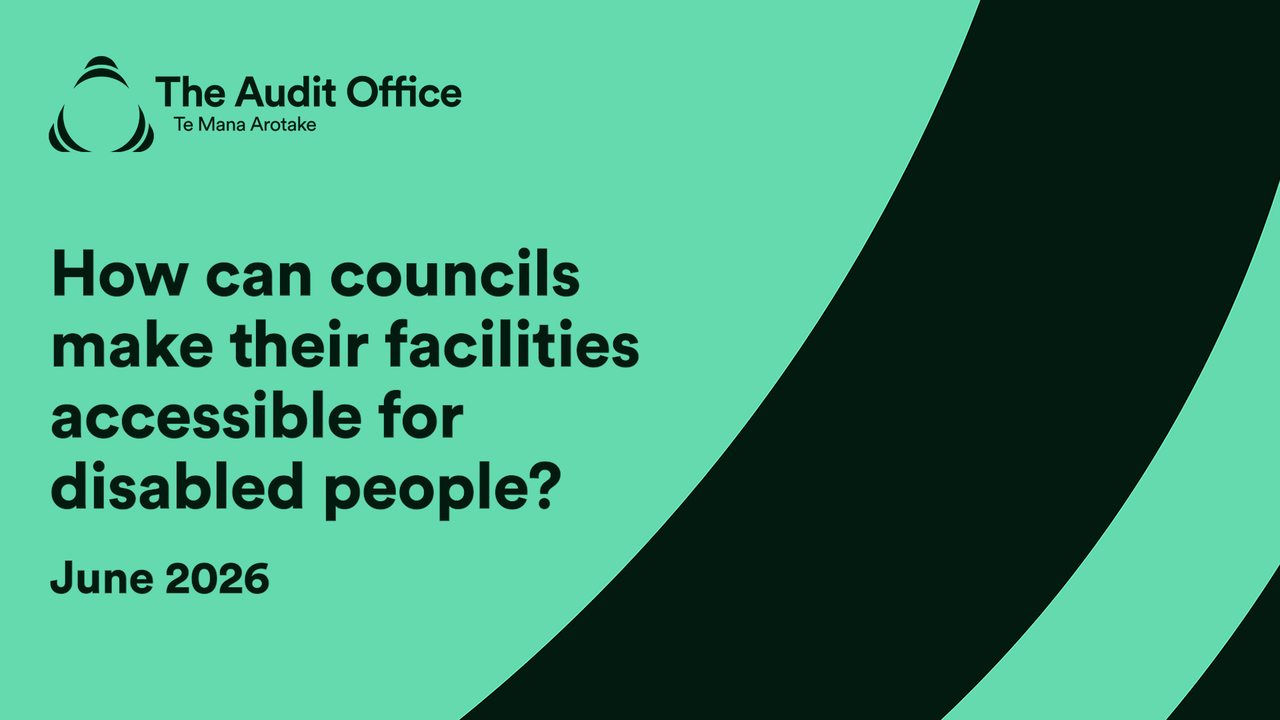
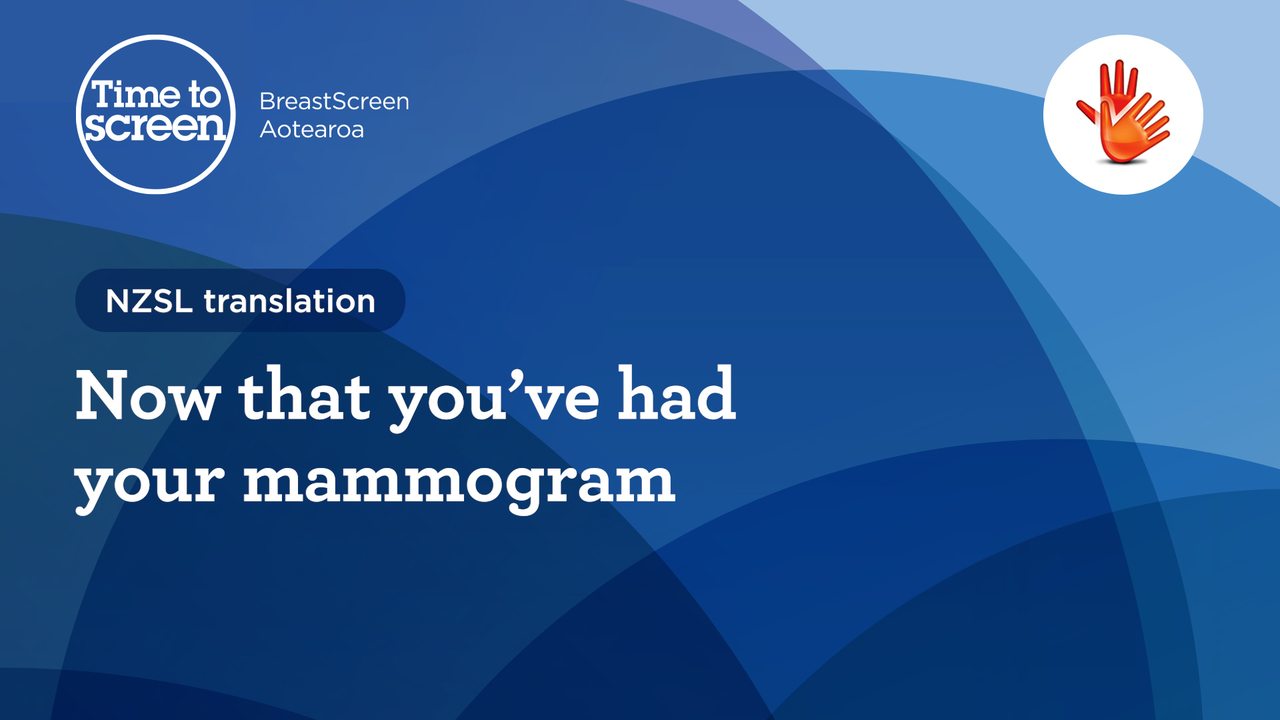
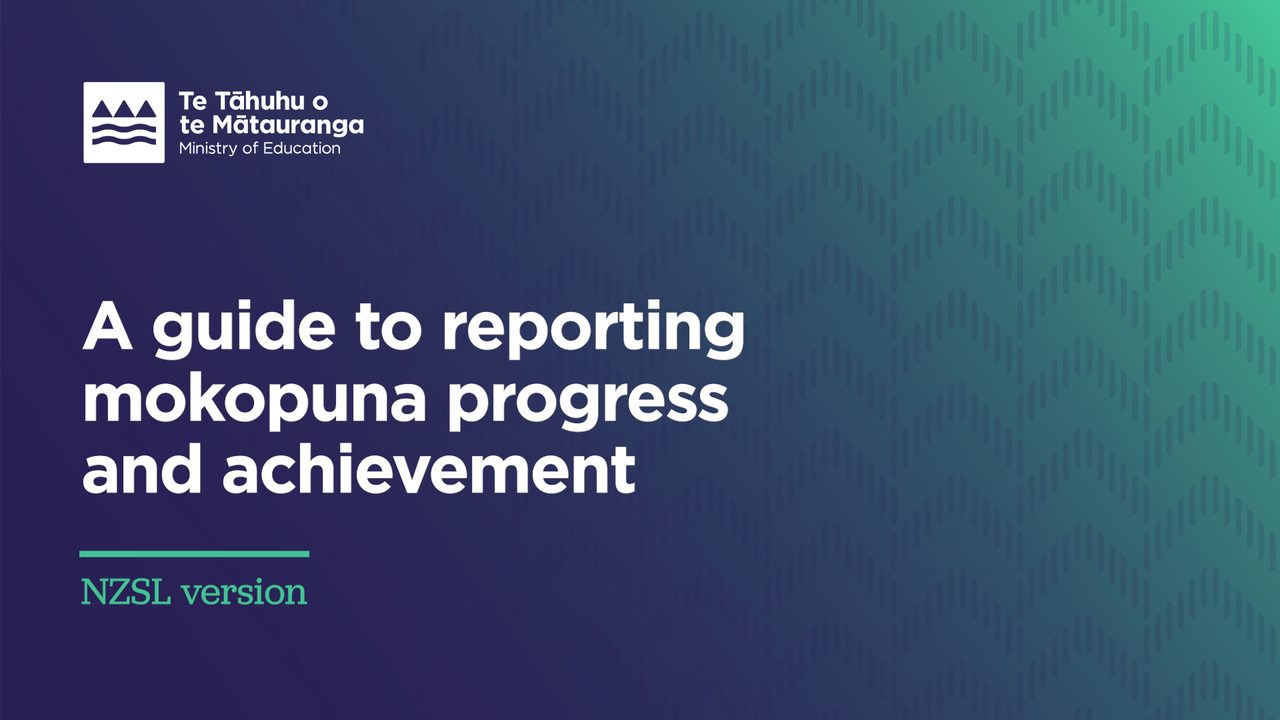
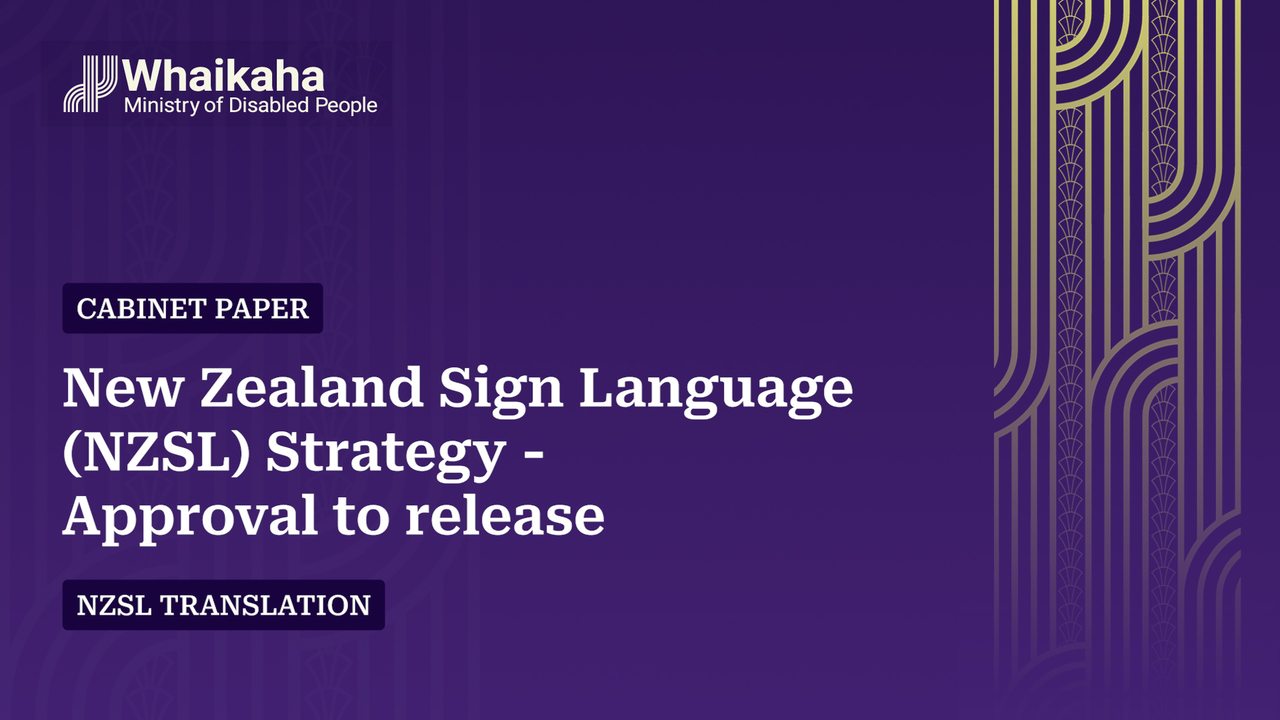
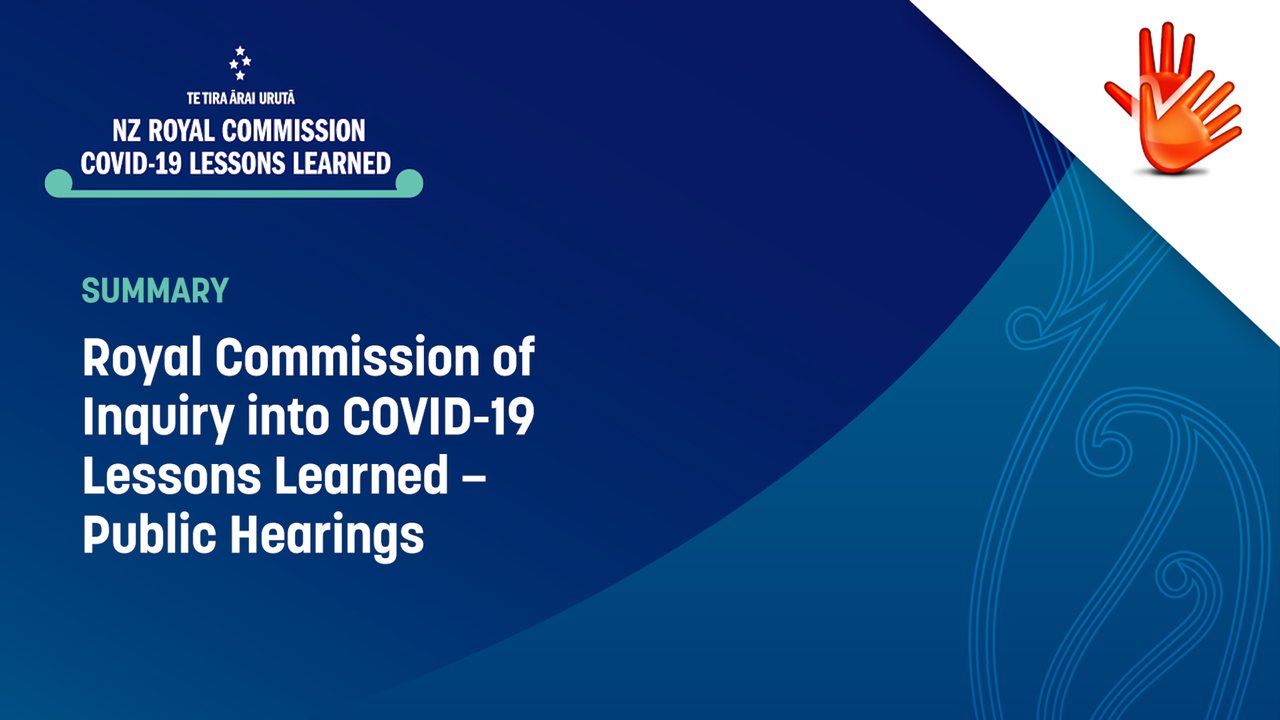
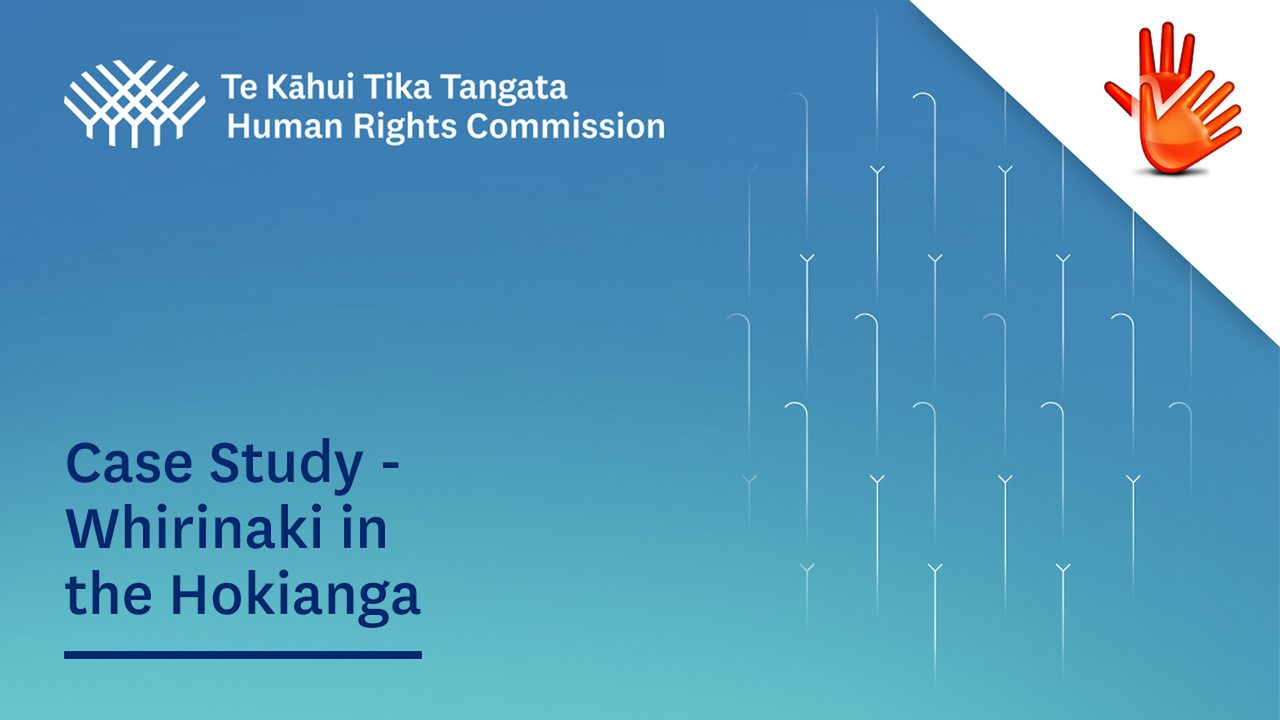
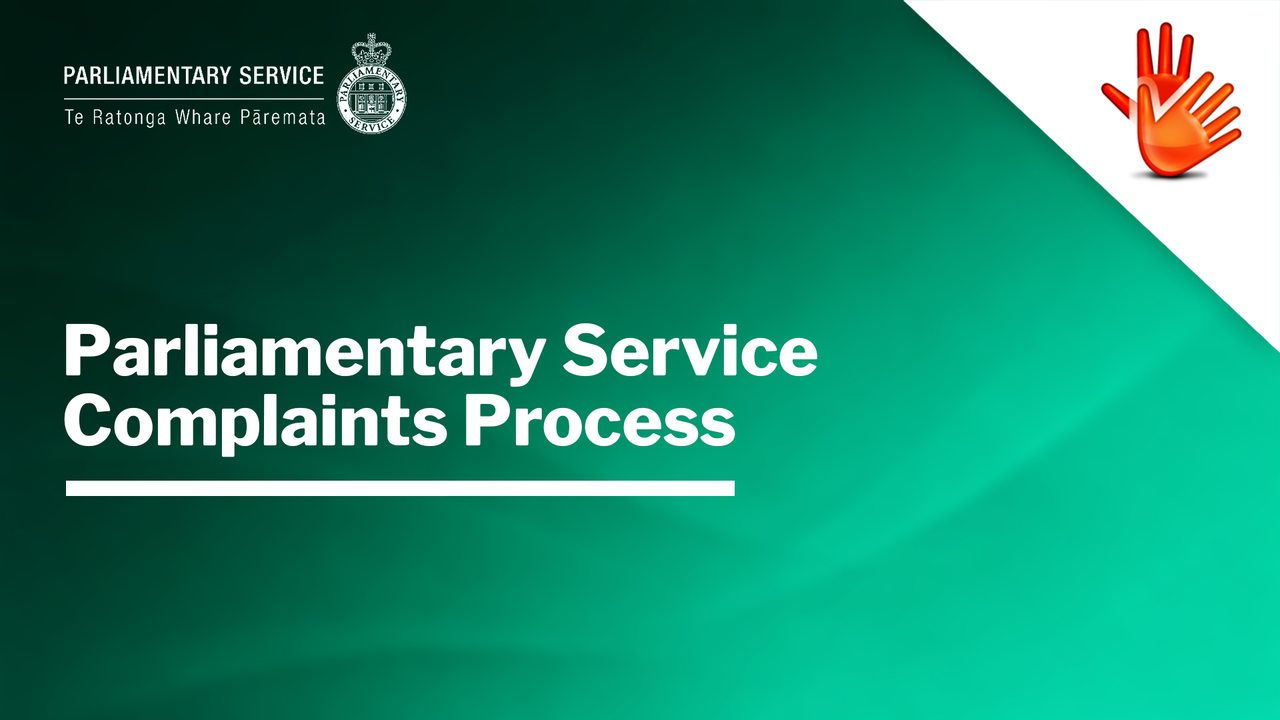
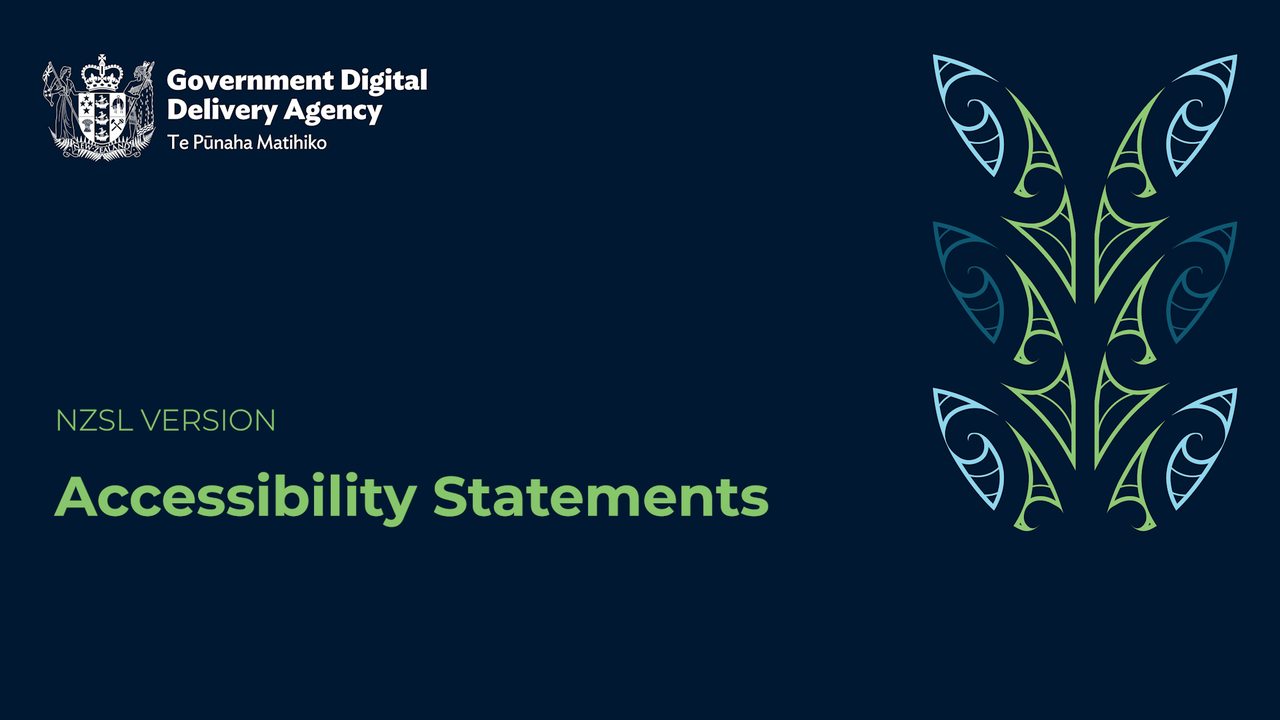
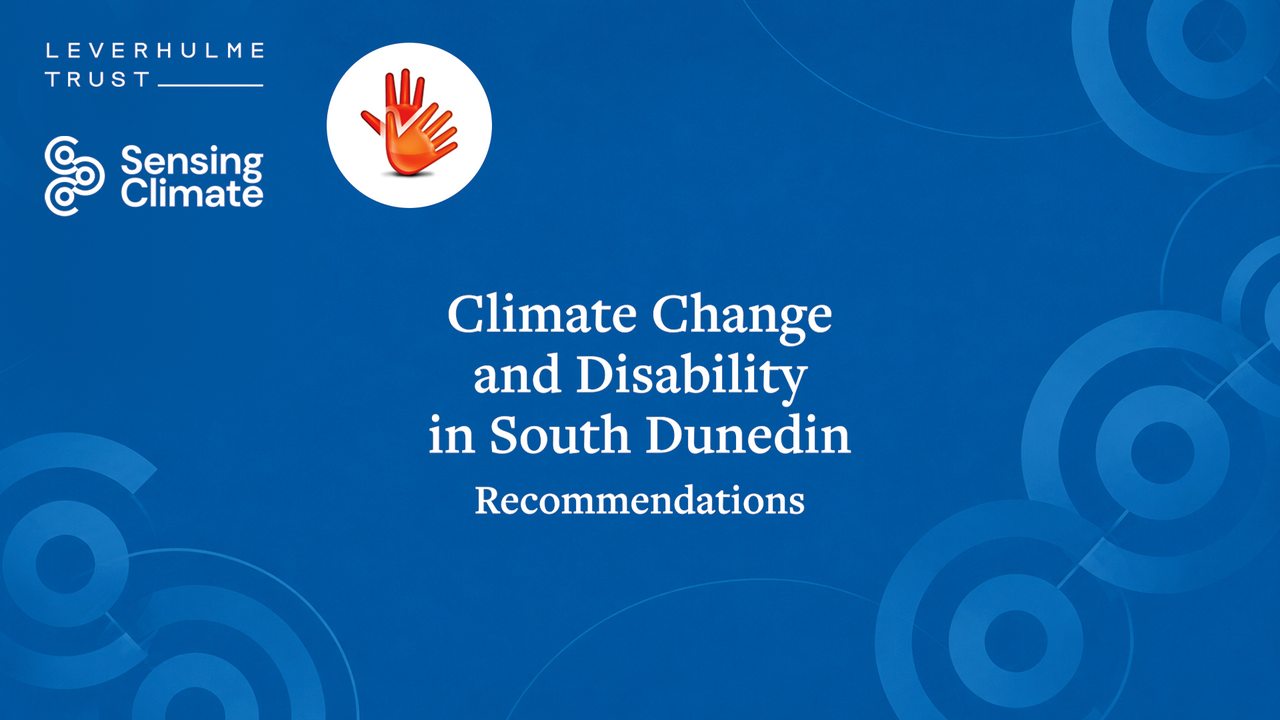
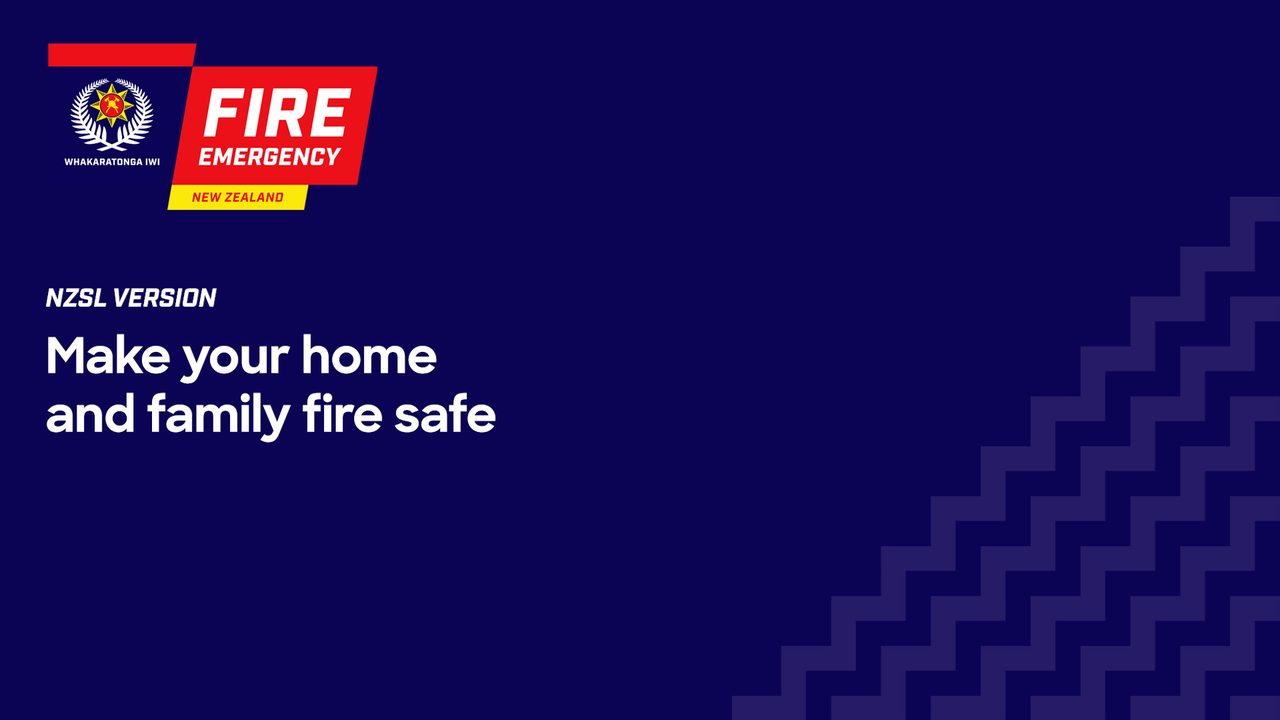
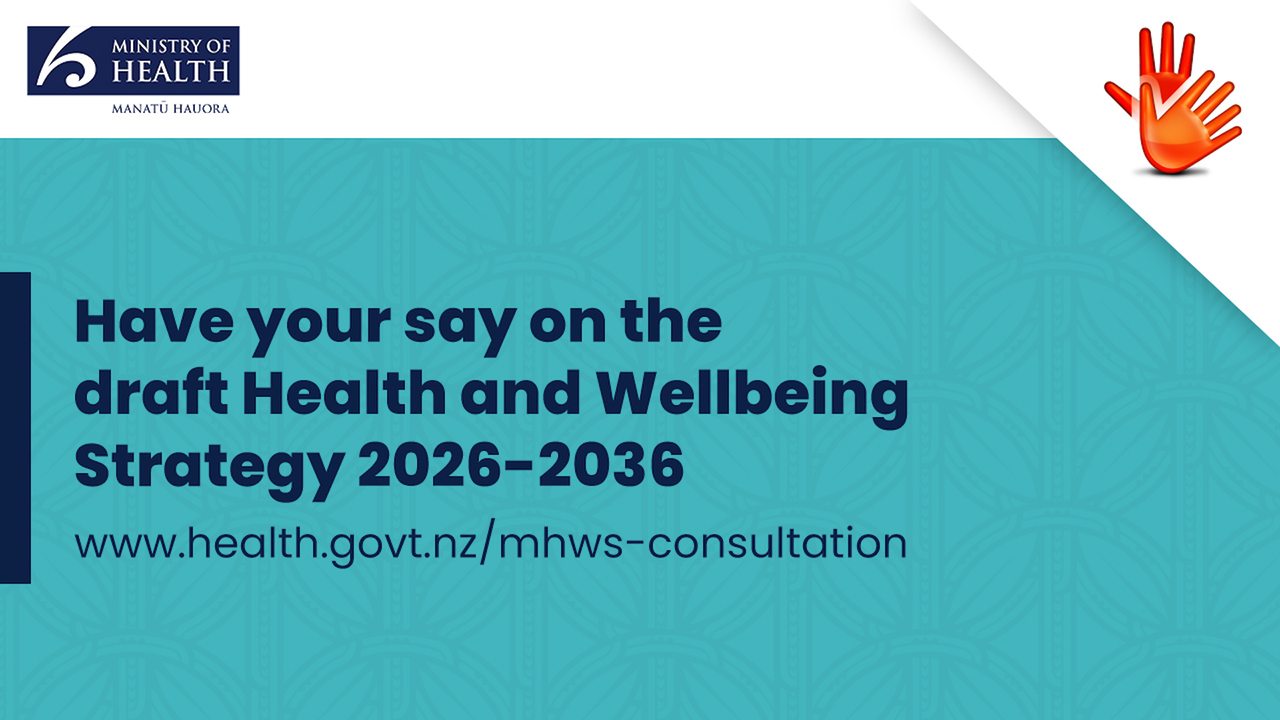
With every completed video we provide a custom screen cover (a poster/thumbnail image), supplied in the Dropbox folder alongside the video files. You must use this screen cover as the video’s cover image everywhere the video appears. You must not use the automatic cover or thumbnail that a video platform (such as YouTube, Vimeo, etc) generates from a random frame of the video. If you prefer to create your own cover that is also okay, however the cover should not include any image of the presenter.
Why: A still taken mid-sign can capture our presenter in an unclear or unflattering pose and does not represent NZSL well. It also protects the presenter’s privacy. The cover we supply avoids this.
When uploading your video to a platform such as YouTube or Vimeo, set our screen cover as the custom thumbnail. On YouTube, upload our image as the custom thumbnail. On Vimeo, set it as the video thumbnail. Do not let the platform to automatically select a frame from the video.
When posting or sharing the video on social media platforms such as Facebook or Instagram, set our screen cover as the thumbnail or cover image. Do not rely on the platform’s automatically generated preview frame.
However you offer the NZSL version – a language selector, an “NZSL” link, a pop-up, or an embedded player – our screen cover must always be used as the video’s poster image:
Embedded HTML5 video: set the poster attribute to our screen cover image.
Embedded YouTube/Vimeo: the custom thumbnail from section 2 will display.
Pop-up or “NZSL” link: the cover must show before the video plays.
The NZSL video file(s), and the matching Deafradio screen cover image(s). Always use the cover image that matches each video. We try and make the connection clear but if you have any uncertainty please check back with us and we are happy to clarify which cover links to each translation video.
You can use an NZSL icon to show that an NZSL translation is available. Place the icon at the end of the relevant paragraph or beside the content it relates to. When someone selects the icon, the NZSL video can open in a pop-up window or on a separate video page.
We recommend using the free Font Awesome Hands icon.
This icon is widely recognised in Aotearoa New Zealand as a symbol for NZSL. You may change the icon’s colour to suit your website design, but it should remain clear and easy to find.
This is especially useful on your homepage or another main entry page. It allows Deaf people to find NZSL information directly, without having to navigate through English-language content first.
The icon should include accessible link text or a label such as “Watch this information in NZSL”, “NZSL video” “Watch in NZSL”, so its purpose is clear to everyone.
Once you have downloaded the translation videos and screen covers, uploaded them to your website and published the content, please send us a link to the webpage.
This allows Deafradio to check that the videos and screen covers are displaying correctly. We may also promote the information through our networks so it can reach the Deaf community.
+64 21 937 399
hello@deafradio.co.nz